Direct2Target#
Configure the target cloud in two ways: via the UI or via API functions.
To configure the target cloud via the UI, open the ACP. In the right part of the page, above the client list, click the Manage Clouds button. The page displays information about the target clouds. Use the available commands in the Actions menu to configure clouds. To add a cloud, click Add below the table with the list of target clouds.
Select the Direct2Target cloud type.
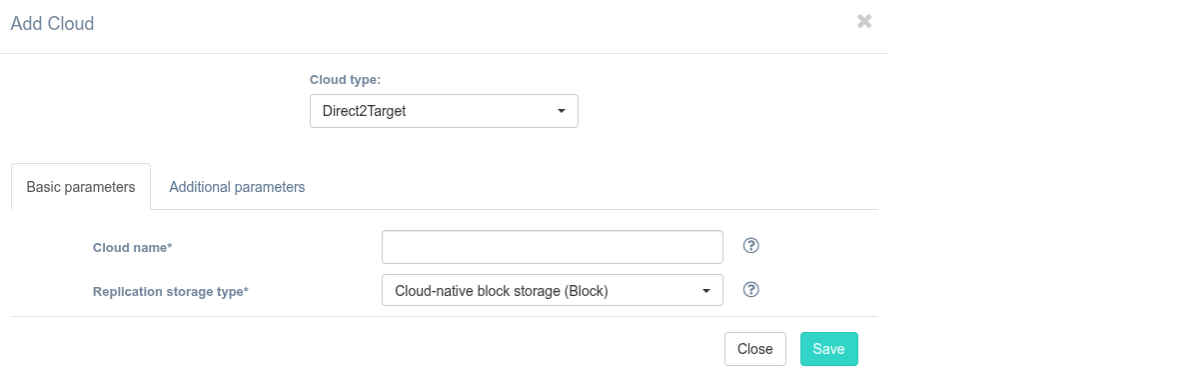
Fill in the fields on the Basic Parameters tab by providing information about the cloud configuration. Click "?" for field tips.
The table below provides a normative mapping between UI field labels and API parameter names used by Hystax Migration during cloud discovery, replication, and recovery workflows.
| Field name in UI / API | Description | Example |
|---|---|---|
Cloud name /name |
The cloud name to be displayed in the UI. The name must be unique. | test_cloud |
| Replication storage type / - |
Choose storage type to use for replicated data. Migration and recovery from cloud-native block storage is fastest, but the other storage types can be cheaper. Detailed description. | Cloud-native block storage |
If necessary, add information about additional parameters. To do this, go to the Additional Parameters tab, select the required parameter, and enter its value. The tooltip system works similarly to the Basic Parameters tab. Description of additional parameters:
| Field name in UI / API | Description |
|---|---|
Cloud Site parallel resources limit /cloud_site_parallel_resources_limit |
How many resources of the same type are allowed to be created in parallel during Cloud Site creation |
Cloud Site replications launch timeout (minutes) /cloud_site_status_change_timeout |
Timeout for a launch of replications during Cloud Site creation (in minutes) |
Cloud Site replications timeout (minutes) /cloud_site_replication_timeout |
Timeout for a replications during Cloud Site creation (in minutes) |
Cloud Site timeout /cloud_site_timeout_min |
Cloud Site creation timeout in minutes |
Enable ransomware protection /enable_ransomware_check |
Check this box to detect and suspend machines with abnormally large incremental replication size to mitigate possible ransomware impact |
P2V type /p2v_type |
Specify a non-standard P2V value. For example, for Virtuozzo Hybrid Infrastructure, specify "virtuozzo". |
Ransomware protection threshold /ransomware_threshold |
Ransomware protection threshold (in percent). Defines the maximum permissible size of incremental replication relative to the latest full backup. Exceeding this threshold triggers automatic machine suspension. |
Use cloud-native UEFI /use_native_efi |
By default, all UEFI VMs are automatically converted to boot through BIOS. Set this parameter to disable conversion and use cloud-native UEFI boot instead. Please note, that some clouds support BIOS boot only and require this parameter to be disabled. |
Click the Save button. The platform checks the entered data for correctness. If an error occurs, a notification appears.