CloudStack#
Installation requirements#
-
Golden image with Hystax Migration Controller and Hystax Cloud Agent.
-
Resources to launch a virtual machine created from the Hystax Migration Golden image:
- 8 vCPUs,
- 16GB RAM,
- 250GB SSD disk.
-
Resources to launch a virtual machine for the Hystax Cloud Agent. Created in each target / failover namespace:
- 2 vCPUs,
- 4GB RAM,
- 20GB disk.
-
Network connectivity between source site and Hystax Migration VM via ports tcp/443 and udp/12201.
- Network connectivity for Migration user via tcp/443 (UI/API) and tcp/4443 (Initial configuration UI, should be closed after).
Installation steps#
Cloud configuration#
Deploy a virtual machine from the golden image with a key pair attached and launch it in the CloudStack zone.
Note
Adding a key pair during Migration's deployment is highly recommended to provide you with SSH access to the machine. Although Hystax Engineering team is able to perform maintenance checks and troubleshooting (as long as the network is reachable and your security groups allow the corresponding traffic), it is better to have your own means of accessing the Migration instance.
Pass Migration initial configuration#
Wait 10-20 minutes for the solution to boot up, open a web browser and go to https://<PLATFORM_IP_ADDRESS>/. Please accept the certificate warnings to be redirected to the initial configuration page.
If the solution is inaccessible, refer to this instruction.
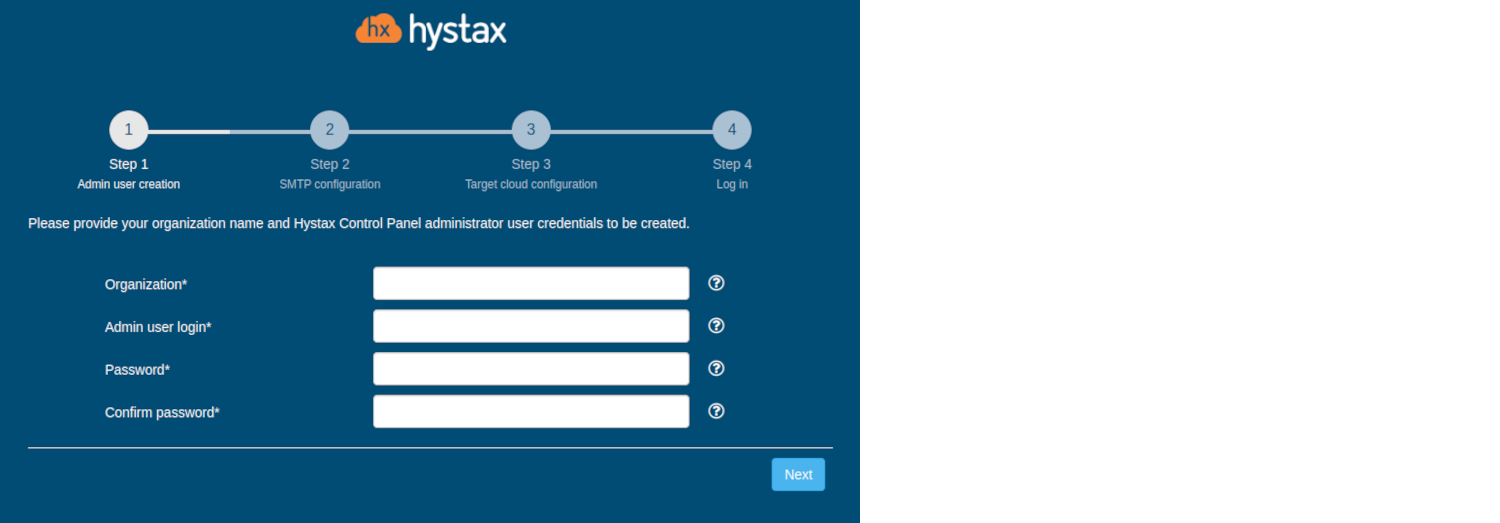
Step 1. Admin user creation.
Enter the organization name and new Hystax Admin User credentials into the Setup Wizard. This is the user account for logging in to Hystax Migration Control Panel and managing the system. If there are any errors, the system notifies you.
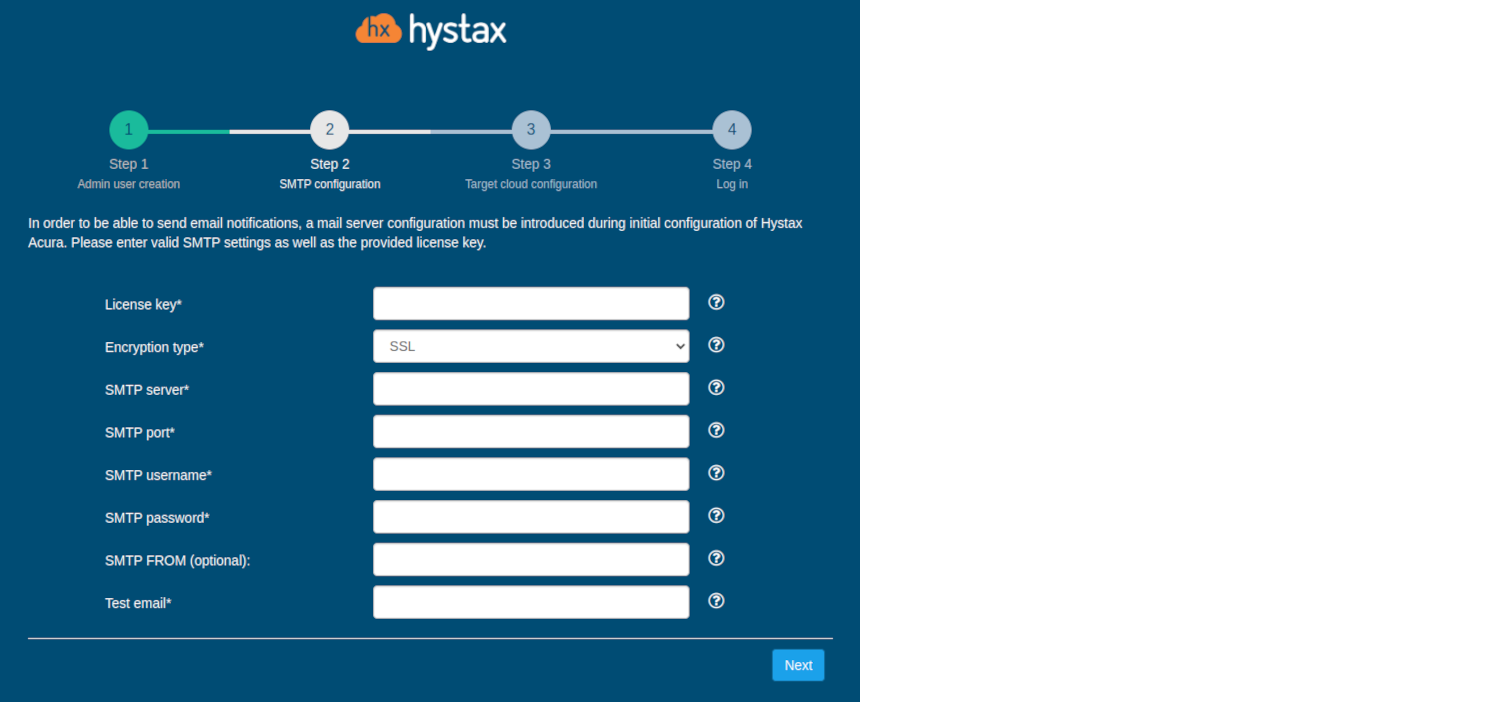
Step 2. SMTP configuration.
Fill in your Hystax License key that was supposed to be shared with you in advance as well as the settings for accessing your mail server used to send notifications from Migration and generate periodic reports.
Warning
SMTP server with TLS/SSL encryption is required to proceed with deployment.
If you prefer a public SMTP server associated with your email address (gmail, yahoo etc.), please find its settings online. In case of a private SMTP server, contact your network administrator for further details.
A sample notification is sent to the specified "Test email" to verify the functionality when you click "Next".
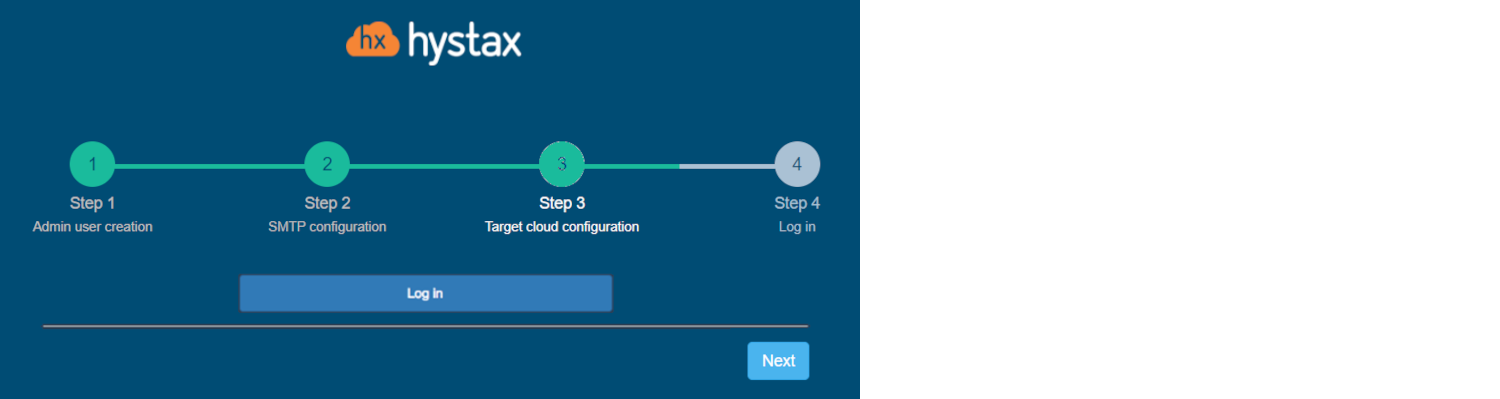
Step 3. Target cloud configuration.
Fill in all the fields by providing cloud configuration details. Use question mark icons to get hints on the fields.
Detailed description of the fields.
After you click "Next", the Setup Wizard validates the entered data and notifies you in case of an error.
Step 4. Log in.
Installation is complete, and you can now log in to the system using credentials entered in the first step.
Congratulations, you are now ready to use Migration! Just enter the administrator username and password specified on the first step of installation in the login page of the solution.
Operational details and limitations#
- Do not delete Cloud Agent manually.
- Installation and operation on systems with Secure Boot are not supported.
- Only KVM hypervisor is tested, and cloud agent image supports only KVM.